Face background removal
Background removal allows to remove the background from a person’s portrait, and replace it by a plain color should be performed in two steps:
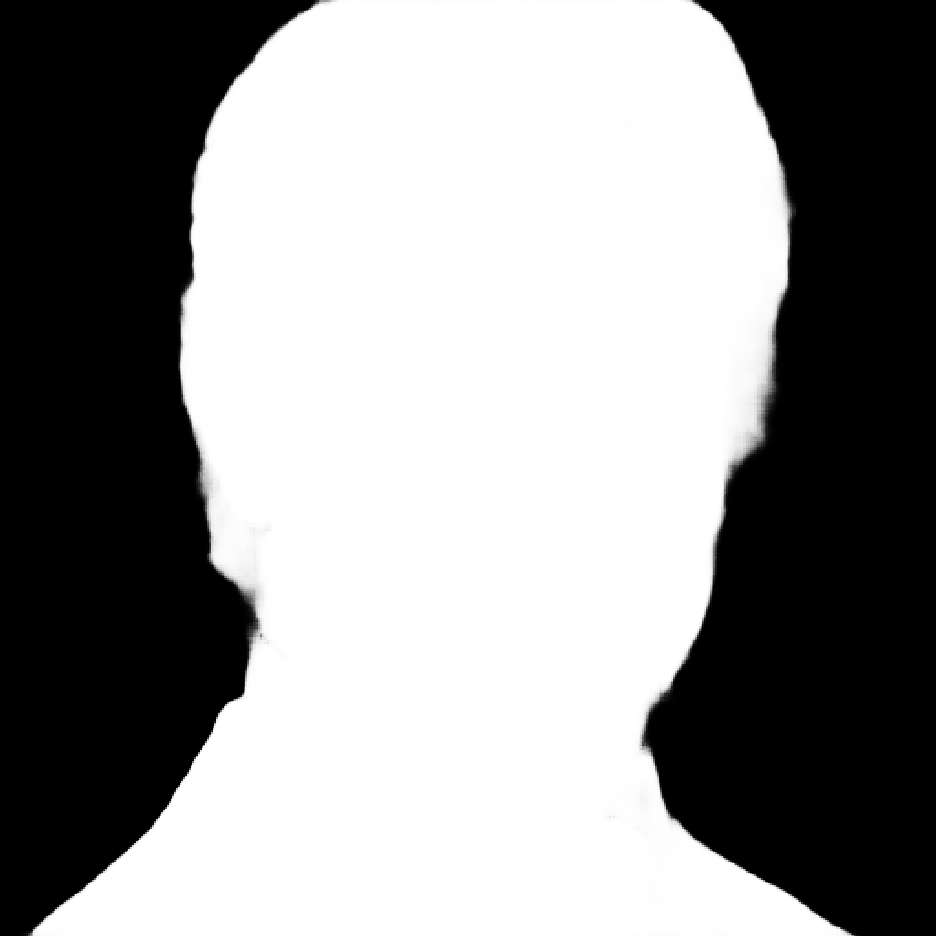
Call the FaceAnalyser.SegmentBackground method to create a segmentation mask.
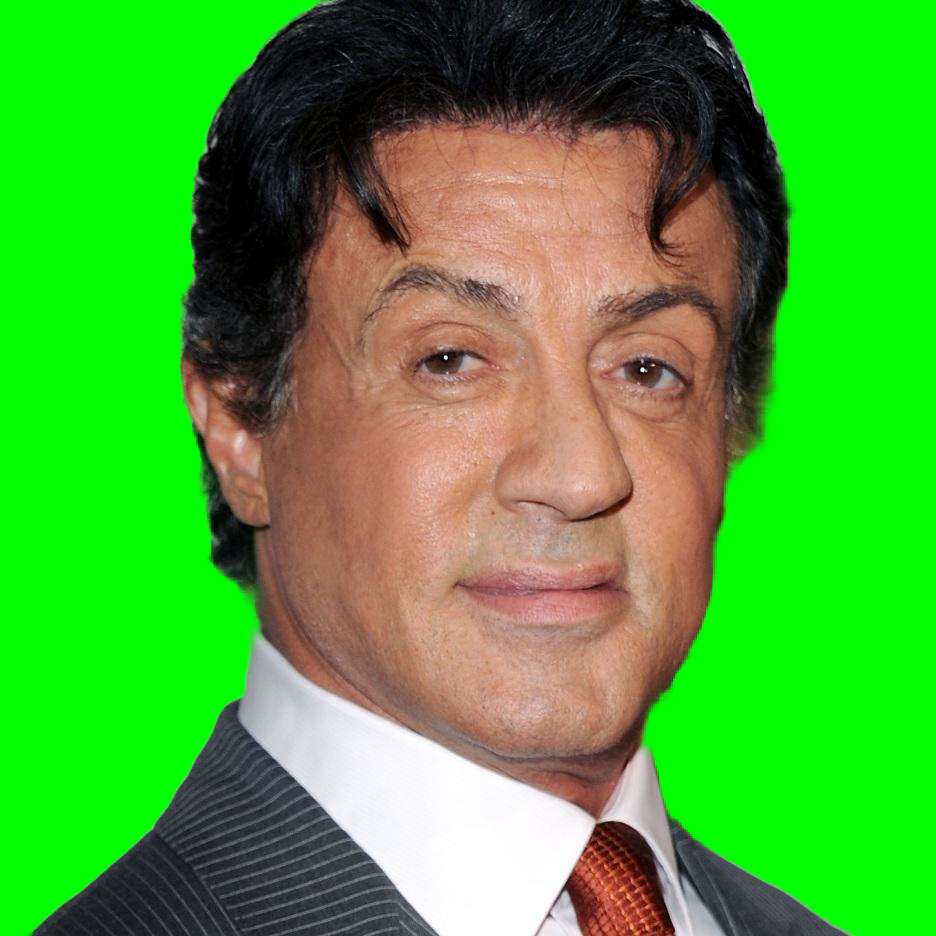
Call the FaceAnalyser.applyMask method to apply the segmentation mask and replace the background by a specified color.
Important
The FaceBackgroundSegmenter1A model is required to suppress the background. (Before 9.11.0, the model was FaceSegmenter1A)
Left: Alpha mask. Right : Segmented Image
Example
If the face is approximately centered and in the foreground of the image, directly use the BackgroundSegmentation functions.
analyser = id3.FaceAnalyser()
def remove_background_in_portrait(image: id3.Image):
    """
    analyser : id3.FaceAnalyser = ... # Previously initialized analyser module
    """

    # compute face segmentation mask
    mask = analyser.segment_face(image)

    # apply mask and get a new image with green background
    image_with_green_background = analyser.apply_mask(image, mask, 0, 255, 0)

    # apply mask and get a new image with transparent background
    image_with_transparent_background = analyser.apply_alpha_mask(image, mask)
Deal with faces not centered
If the face is not the main subject of the photo, quite small or on the side, we recommand to first run a Face detection step and coarsely crop the image around the face
analyser = id3.FaceAnalyser()
def remove_background(image: id3.Image):
    """
    analyser : id3.FaceAnalyser = ... # Previously initialized analyser module
    """
    # See Face detection tutorial for more details
    detected_face: id3.DetectedFace = ...

    # Coarsely crop image around the face
    coarse_ROI = detected_face.get_portrait_bounds(0.25, 0.45, 1.33)
    coarse_cropped_img = image.extract_roi(coarse_ROI)

    # compute face segmentation mask
    mask = analyser.segment_face(coarse_cropped_img)

    # apply mask and get a new image with green background
    image_with_green_background = analyser.apply_mask(image, mask, 0, 255, 0)